
WordPress Theme Performance Optimization in 2026: Core Web Vitals, Speed and SEO Checklist
Improve WordPress theme speed with a practical 2026 checklist covering Core Web Vitals, CSS, JavaScript, fonts, images, caching and mobile performance.
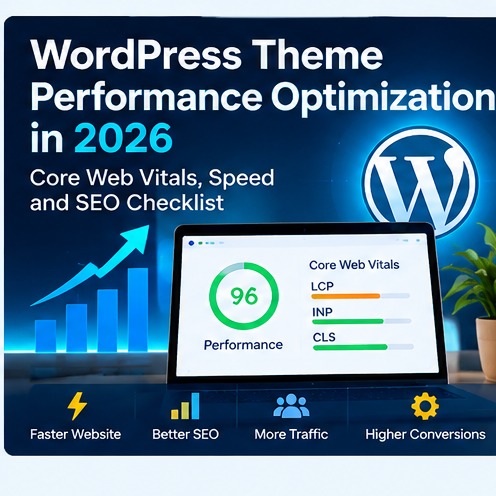
WordPress theme performance optimization is one of the most important technical tasks for any site that depends on search traffic, conversions or mobile visitors. Even a visually impressive theme can create a poor experience when it loads excessive CSS, blocks rendering, shifts content or depends on large images and scripts.
This 2026 guide explains how to evaluate and improve theme performance without sacrificing design. It focuses on practical checks that site owners, developers and agencies can use before and after launching a WordPress theme.
Why WordPress theme performance optimization matters
The theme controls much of the HTML structure, CSS, JavaScript, fonts and layout behavior seen by visitors. Plugins and hosting matter too, but a heavy theme creates a performance problem before additional features are even installed.
Faster pages generally improve usability, make mobile browsing easier and reduce friction between a visitor and the action you want them to take. In addition, better technical quality can support SEO by helping users and search engines interact with the site more efficiently.
WordPress theme performance optimization and Core Web Vitals
Core Web Vitals provide a useful framework for diagnosing user-visible performance. The exact thresholds and reporting tools may evolve, so check current guidance from web.dev.
The important idea is to measure loading speed, responsiveness and visual stability using real-user data where possible. Lab tests are useful for debugging, but field data shows what visitors actually experience.
WordPress theme performance optimization: Audit the theme before optimizing

Before changing code, establish a baseline. Test the homepage, a typical article, an archive page and any important product or landing page. Record load time, page weight, request count and the largest performance warnings.
If you are selecting a new theme rather than improving an existing one, read our guide to choosing a WordPress business theme before committing to a design.
WordPress theme performance optimization: 1. Reduce unnecessary CSS
Large stylesheets increase download size and can delay rendering. Themes often accumulate CSS for components that are not used on every page.
Look for page-builder styles, icon libraries, legacy layout rules and component CSS loaded globally. Where practical, split or conditionally load styles so pages receive only what they need.
Minification can reduce file size, but it does not solve the underlying problem of shipping unused code. Removing unnecessary rules has a greater long-term benefit.
WordPress theme performance optimization: 2. Control JavaScript
JavaScript can delay interaction and consume mobile CPU resources. Review every theme script and determine whether it is necessary on every page.
Common candidates for improvement include sliders, animation libraries, popups, sticky elements and third-party widgets. If a feature adds little value, removing it is often better than trying to optimize it.
Use deferred or delayed loading carefully. A script that controls essential navigation should not be delayed in a way that makes the interface unusable.
WordPress theme performance optimization: 3. Optimize images at the theme level
Theme layouts should request appropriately sized images instead of displaying huge source files inside small cards. WordPress provides responsive image features, but the theme must use image functions and sizes correctly.
Use modern formats where appropriate, compress images and define dimensions to reduce layout shifts. Hero imagery should be especially well optimized because it often becomes the largest element above the fold.
WordPress theme performance optimization: 4. Prevent layout shifts
Unexpected movement makes a site feel unstable. Common causes include images without dimensions, ads inserted without reserved space, fonts that change metrics after loading and banners that appear above existing content.
Reserve space for images, ad units and dynamic components. Test mobile layouts because small screens make shifts more noticeable.
WordPress theme performance optimization: 5. Optimize fonts
Custom fonts can add multiple network requests and delay text rendering. Use only the font families and weights the design genuinely needs.
Consider system fonts for interfaces where branding does not depend on a custom typeface. If you use web fonts, preload only critical files and configure sensible fallback fonts.
6. Keep the DOM manageable
Some page builders and themes create deeply nested markup. A large DOM can slow style calculations and make maintenance harder.
When reviewing templates, look for unnecessary wrappers, repeated hidden components and duplicate navigation structures. Clean markup also improves accessibility and debugging.
7. Design responsive components properly
A desktop layout should not simply shrink until it fits a phone. Themes need explicit mobile behavior for headers, menus, cards, tables, ads and forms.
Test real device widths, not only one browser preview. Pay attention to horizontal overflow, truncated logos, oversized buttons and search fields that extend beyond the viewport.
8. Avoid excessive global assets
A common theme problem is loading the same library everywhere because one template uses it. Condition scripts and styles based on page type whenever practical.
For example, a gallery library used only on portfolio pages should not necessarily load on every blog post.
9. Work with caching, not against it
A fast theme should behave well with page caching, browser caching and a CDN. Avoid generating unnecessary dynamic output that prevents pages from being cached effectively.
When changing performance settings, purge caches and test logged-out pages. Logged-in administrator views can behave differently from public visitor pages.
10. Check third-party scripts
Analytics, advertising, chat widgets, consent tools and embedded media can dominate load time even when the theme itself is efficient. Inventory third-party scripts and remove those that do not provide enough value.
If the site uses advertising, reserve stable ad dimensions and avoid loading heavy ad technology before critical content.
11. Test the header separately
The header appears on almost every page and is often loaded immediately. Complex navigation, large logos, duplicate search interfaces and multiple icon libraries can add unnecessary work.
Keep mobile navigation simple. Make sure the logo remains readable, controls have appropriate touch targets and search interfaces do not duplicate or overflow.
12. Optimize archive and card layouts
Homepages and category archives may display many images at once. Use lazy loading for below-the-fold images and ensure the theme requests card-sized files instead of full-resolution originals.
Pagination or a controlled load-more feature can reduce the amount of content rendered initially while still helping visitors discover more articles.
13. Measure SEO and performance together
Technical SEO and performance overlap. A site with broken mobile layouts, slow pages or unstable content can struggle to convert search visibility into useful traffic.
Use analytics and search-performance tools to identify pages that attract impressions but provide a weak experience. For broader SEO, competitor and backlink analysis, CBOOMARANK can help teams investigate visibility opportunities before and after technical improvements.
WordPress theme performance optimization checklist
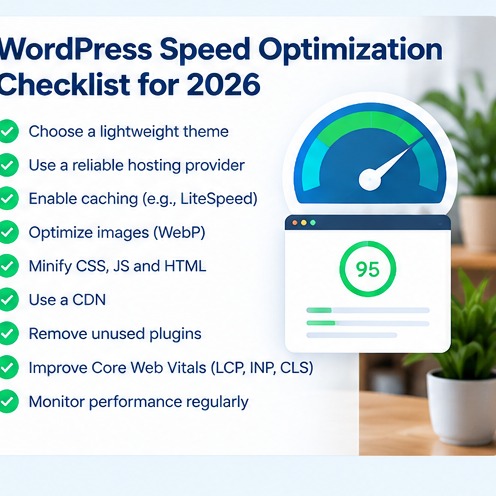
- Test homepage, article, archive and conversion pages.
- Measure Core Web Vitals and real-user performance.
- Remove unnecessary CSS and JavaScript.
- Load assets only where they are required.
- Optimize image sizes and formats.
- Define image dimensions to reduce layout shift.
- Reduce font families and weights.
- Keep DOM depth reasonable.
- Eliminate horizontal mobile overflow.
- Reserve space for ads and dynamic content.
- Audit third-party scripts.
- Test caching and CDN behavior.
- Check the header and navigation on real phones.
- Retest after plugin and theme updates.
WordPress theme performance optimization testing workflow
Use the same test pages before and after each meaningful change. Change one major variable at a time so you know what produced the improvement. Keep screenshots or records of results, especially before theme updates.
Do not optimize solely for a perfect score. A small score change may have little user impact, while eliminating a broken mobile interaction can materially improve conversions.
Should you replace a slow theme?
If performance problems are caused by a few removable features, optimization may be enough. If the theme depends on large frameworks, excessive DOM markup and global scripts for basic functionality, replacement can be more economical than continuous patching.
Consider the maintenance cost, not only the initial redesign effort.
A complete mobile performance check
Open the site on at least one Android phone and one iPhone-size viewport. Check the header, logo, navigation, search, article cards, sidebar, ads, forms and footer. Rotate the device and test again. Pay special attention to controls positioned in the same horizontal row because fixed button widths can crowd branding and create overflow.
Test the page while logged out so administrator bars do not distort the layout. Then test while logged in if editors frequently work from mobile devices.
Use performance budgets
A performance budget gives the team a practical limit. For example, you can decide that the homepage must stay under a chosen number of network requests or that hero imagery must remain below a defined file size. The exact number depends on the site, but the principle is useful: new design features should have a performance cost that is visible before they are approved.
Budgets prevent gradual bloat. Without a limit, each plugin, font, tracking script and design flourish can appear harmless on its own while the total page becomes increasingly heavy.
Review the theme after major WordPress updates
Although a theme update may succeed technically, WordPress core, PHP or plugin changes can still introduce visual or performance regressions. Re-run the same representative page tests after meaningful platform updates.
Check console errors, layout shifts, search, navigation and conversion forms. A short repeatable review is more effective than waiting for visitors to report problems.
14. Optimize database-independent theme behavior
Themes should avoid expensive work on every page request when WordPress can generate the result once and reuse it. Review custom queries, repeated option lookups and dynamic components that execute even when their output rarely changes. Theme code should focus on presentation rather than performing heavy background processing during front-end rendering.
If a component needs data from a plugin or external service, cache the result appropriately and provide a graceful fallback. A design should not leave a blank or broken section simply because an external request is slow.
15. Test accessibility alongside speed
Performance work must preserve accessibility. Removing labels, focus styles or semantic markup to shave a few bytes is not a useful optimization. Keyboard navigation, readable contrast, visible focus states and descriptive controls should remain part of the theme quality standard.
In practice, accessible interfaces are often simpler and more predictable. Clear structure, meaningful headings and native controls can reduce the amount of custom JavaScript required, which can also support performance.
16. Watch for plugin and theme overlap
Performance problems often appear when a theme and plugin both provide the same feature. Two optimization systems may minify or delay the same files, two analytics integrations may load duplicate scripts, or a theme slider may coexist with a page-builder slider.
Audit responsibilities. Decide which system owns caching, image optimization, schema, analytics, forms and other major functions. Removing duplicated functionality makes troubleshooting easier and usually reduces page weight.
17. Establish a post-update regression check
After every important theme update, retest a small set of critical pages. Keep the list short enough that it will actually be used: homepage, one article, one archive page, one form or conversion page and any WooCommerce page if applicable.
Compare screenshots and performance metrics with the previous baseline. This helps detect issues such as a suddenly larger hero image, duplicated CSS, a broken mobile menu or a newly loaded library before those problems become long-term site debt.
18. Prioritize user-visible improvements first
Not every warning deserves equal attention. Start with problems visitors can feel: slow initial rendering, delayed interaction, unstable content, oversized images and broken mobile controls. Then work through lower-impact warnings.
This prevents teams from spending hours chasing small technical scores while major usability problems remain unresolved. The best optimization program improves both measured performance and the experience of using the site.
Final thoughts
WordPress theme performance optimization works best when speed is treated as part of the design system. Build lightweight templates, load only necessary assets, reserve space for dynamic content and test real mobile behavior.
A fast theme gives SEO, content and conversion work a stronger foundation. After improving technical performance, teams can use CBOOMARANK to evaluate search, competitor and backlink opportunities and review available pricing options.
Related Software Guides